

 Peelstack4 min read
QR code or barcode on a product label? How to choose
A plain guide to picking a QR code or a barcode for jars, boxes and stock labels made from a Google Sheet, and how to test that it scans before you print.
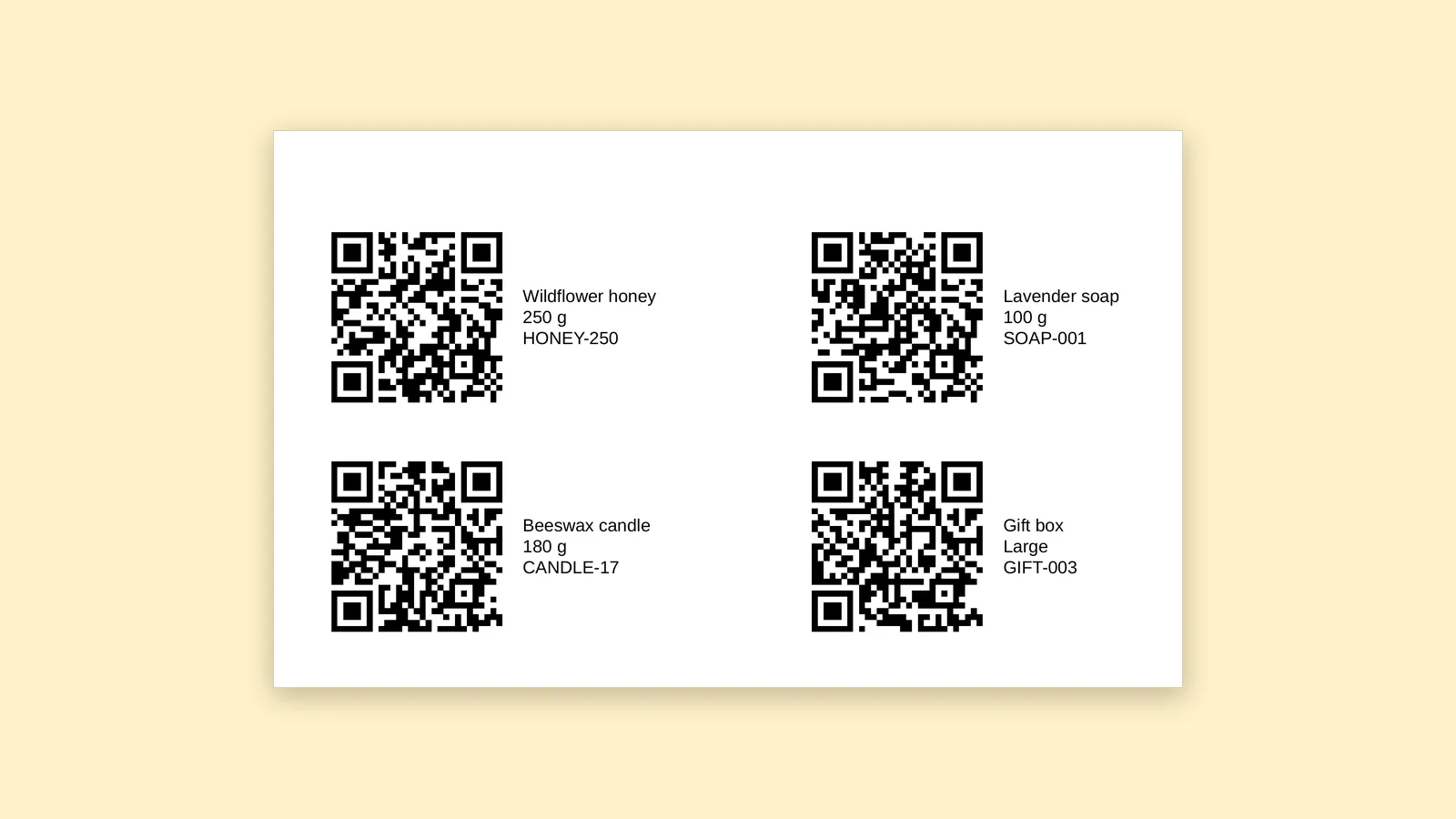
Picture a small shop on a busy Saturday. A customer picks up a jar of honey and wonders where the flowers came from. Behind the counter, a helper needs to know in two seconds whether there is more of that honey in the back. Both questions can be answered by a little square of black and white on the label. They just need different squares.
If your products, boxes or shelves are listed in a Google Sheet, you already have the hard part. Here is how to choose between a QR code and a barcode, how to feed them from your sheet, and how to make sure the result scans before you print a whole page of labels.
The short rule: who is scanning?
A QR code is for people with phones. A customer points a camera at it and lands on a web page, a recipe, a care guide or a reorder link. It holds text, usually a web address, and most phone cameras read it without an extra app.
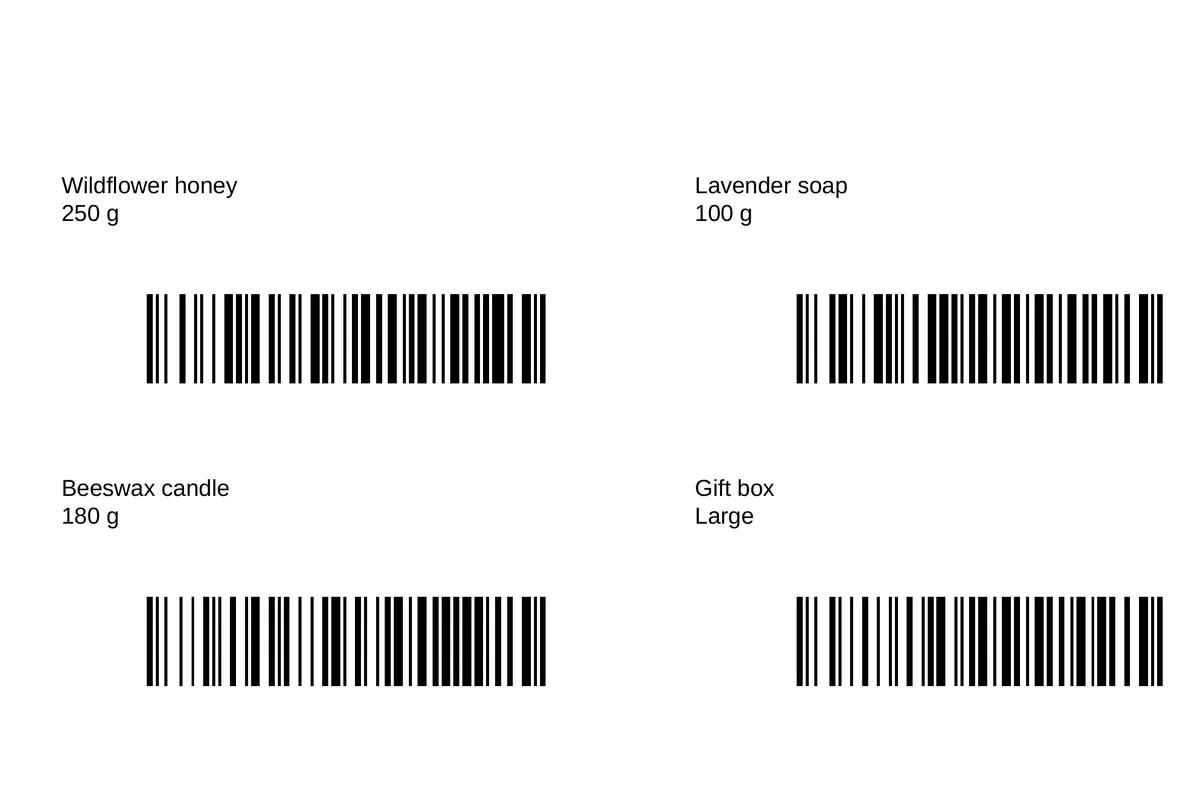
A barcode is for scanners. A handheld scanner at a counter or in a stockroom reads it in a flash and types the value into whatever program is waiting. Barcodes shine for your own item codes, shelf locations and asset tags.
If you cannot decide, ask who will scan the label and with what. A phone points to a QR code. A scanner points to a barcode.
Which barcode?
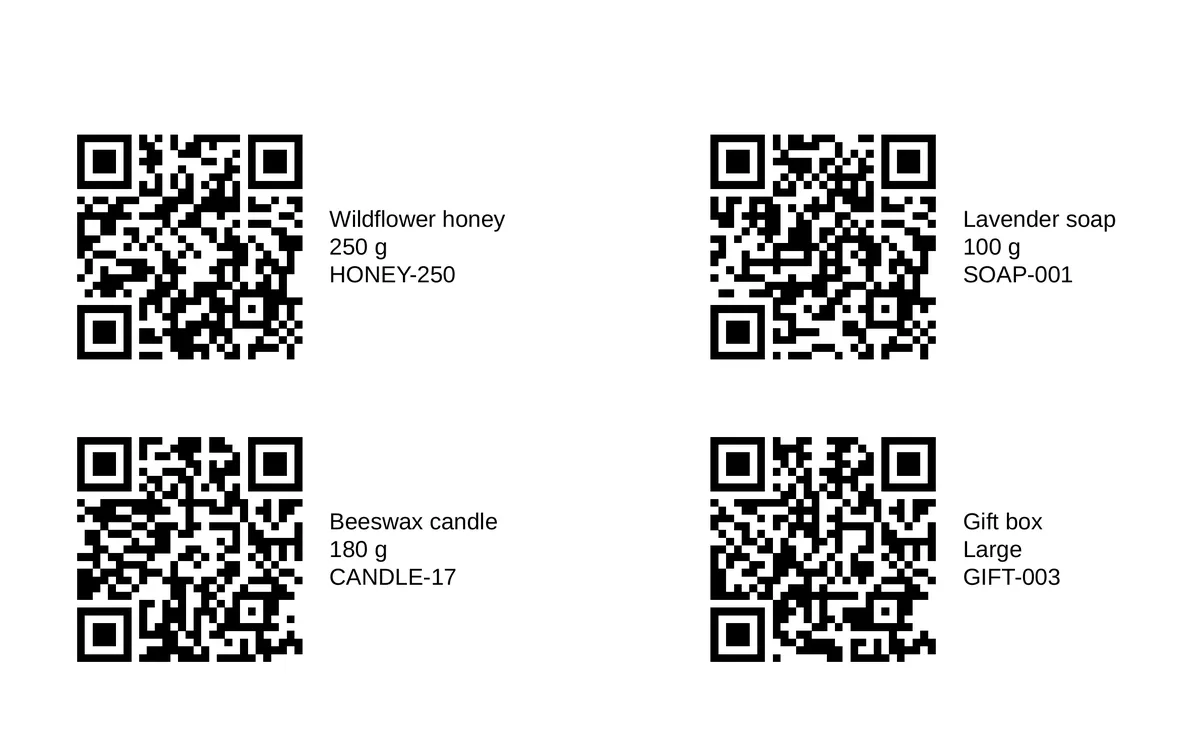
Peelstack Label Maker makes three kinds: Code 128, EAN-13 and UPC-A.
- Code 128 holds letters, digits, spaces and common symbols. It is the easy choice for codes you make up yourself, such as a SKU like JAM-STR-250 or a bin location.
- EAN-13 and UPC-A are retail product numbers. They end in a check digit, so a mistyped number is caught by the scanner. They are issued through GS1, the organisation that manages them, so if a store will scan your products at a till, get your numbers from the source instead of inventing them.
If a retail number in your sheet is not valid, no barcode is printed for that row, so a typo does not slip out onto your labels. That is a helpful safety net, but it is still worth a glance at the preview.
One more detail: barcodes cannot hold accented letters or other scripts. If a value contains characters like those, the barcode is left out on that row and the preview tells you which. Use plain letters, digits, spaces and common symbols in the column that feeds a barcode.
Set up the sheet
Start with a header row and one item per row. A column for the item name, a column for the SKU, and a column for the link or retail number the code should carry. Two tips save a lot of trouble:
- Format codes as plain text first. A retail number can start with a zero, and a spreadsheet drops a leading zero from a number. Select the column, choose Format, Number, Plain text, and then paste.
- Put the real web address in its own column. If a link cell was made with the HYPERLINK formula, the sheet shows the link text, not the address, so a QR code would hold the text. Peelstack Label Maker warns you when it sees that, and the cure is a plain column holding the address.
One code per label
It is tempting to squeeze codes and artwork onto one small label. Resist it. On Peelstack Label Maker a label carries a single code or picture, and with reason: each needs room around it to scan. Decide what the label is for, give it one code, and if you need a second one, use another label or a larger label.
Size and room decide whether it scans
A code that looks sharp on screen can fail on paper. Some practical points:
- Short is easier. A short web address makes a QR code with larger squares, which scans from a small label more easily. Shorten long links before they reach the sheet.
- Barcodes need width. A long value makes a wide barcode, and squeezing it makes the bars too thin to read. Use a wider label or a shorter value.
- Keep white space around a code, and keep it off the paper edge, because many home printers cannot print right to the edge. Peelstack Label Maker warns when a code or picture is close to the edge.
- Dark on light. Black on white, or on a pale label, is best.
The preview helps here. If a QR code or barcode would be too small to scan, it is left out on that row and the preview names the rows, so you can pick a bigger label or shorter text instead of printing a surprise.
Test before the run
Print one page on plain paper at Actual size, with fit to page turned off. Then scan it:
- Aim your phone at a QR code and check it opens the page for that row.
- Scan a barcode with the scanner you will really use, and compare the result with the sheet.
- Hold the plain page over a label sheet against a window to see where the codes land.
Only when all of that works should you load the real label sheet.
The takeaway
Think about who scans. Phones want QR codes, scanners want barcodes, and each label gets one code with space around it. Format your codes as text, check the preview for rows that are too small, scan a test page, and then print the sheet.
Peelstack Label Maker is coming soon to the Google Workspace Marketplace. Read more at taskivator.com/peelstack.
For Google Sheets. Works with Avery and other label sheets. Not affiliated with Google or Avery.
---
Peelstack Label Maker
Keep reading
 Peelstack4 min read
One label per household: a holiday card list you can reuse
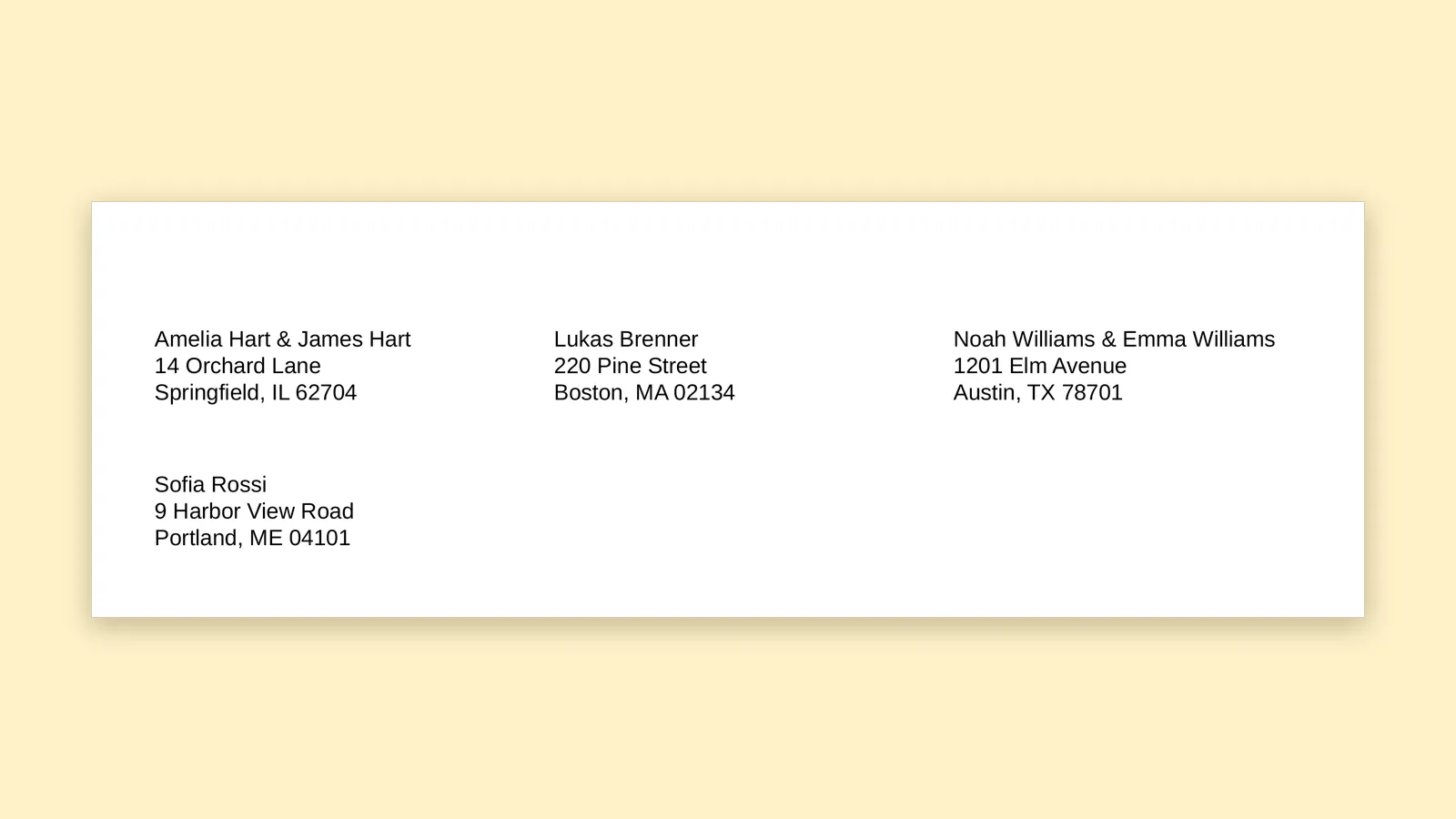
Keep your holiday card list in one Google Sheet and print one label per household, with the names joined, then reuse the same list and design next year.
Read the article Peelstack5 min read
How to print envelopes straight from a Google Sheet
Turn a list of addresses in Google Sheets into printed envelopes with a return address and logo, and test on plain paper before you use a good envelope.
Read the article Peelstack4 min read
How to print on a partly used sheet of labels
Half a sheet of labels left over? Start printing at the first empty label, test on plain paper and use up the whole sheet from Google Sheets.
Read the article