

 Peelstack3 min read
An Avery label template for Google Sheets™ without downloading one
You do not need a template file to print on Avery sheets from Google Sheets™. Type the code from the box, check the preview and print a PDF at the sheet's size.
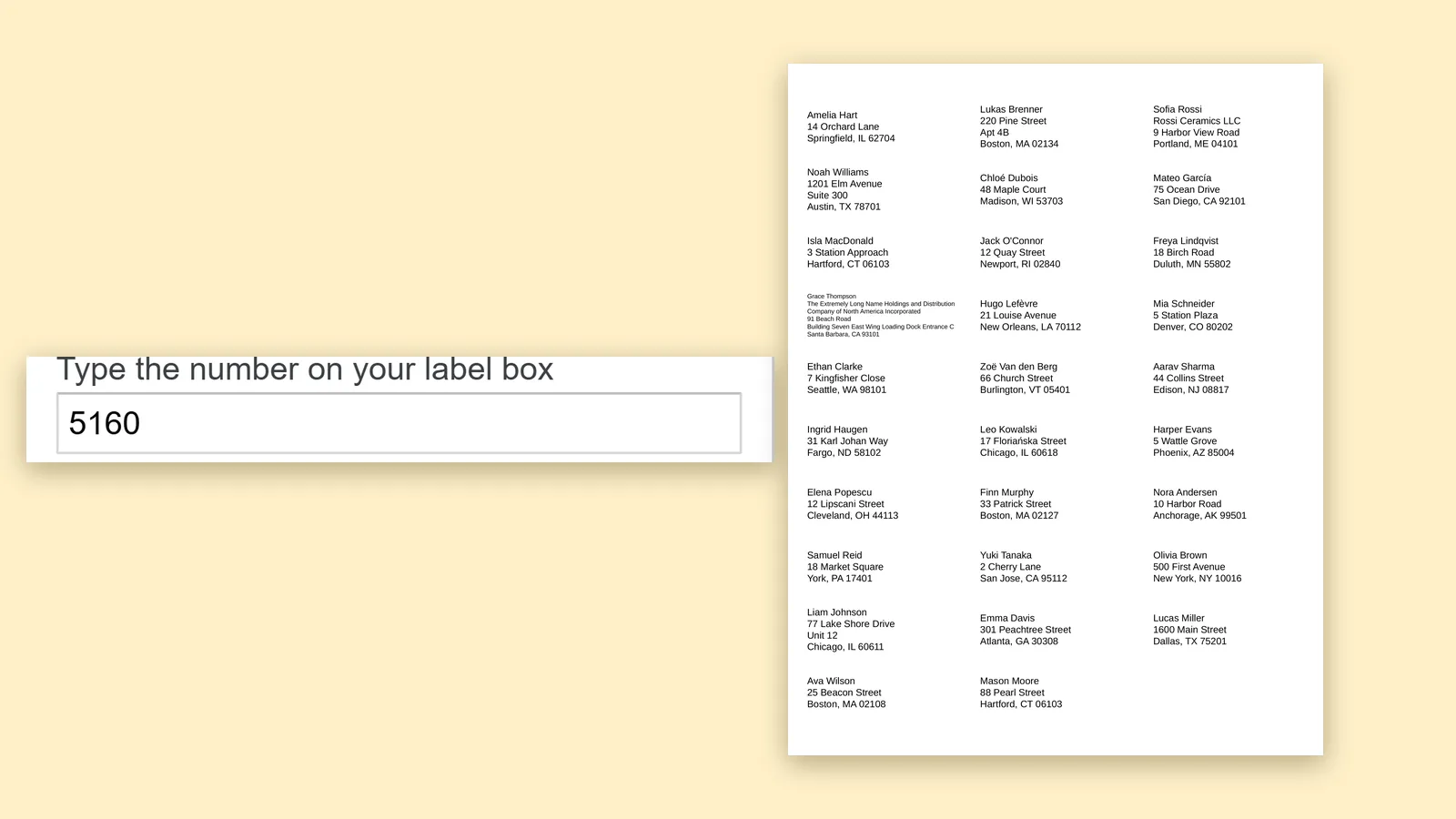
Search for an Avery template and you will find downloads: a Word file, a PDF, a page in an online designer. Then comes the part that is easy to miss, which is pasting your list into a grid of cells one label at a time. If your list already lives in Google Sheets™, there is a shorter way. You do not need a template file at all, because the layout of the sheet can come from the code on the box.
Find the code on the box
Look at the label box or the sheet's backing paper. Avery codes are short numbers such as 5160, 8160 or 5163, and on A4 sheets they look like L7160. Some boxes show several codes for the same layout, and that is normal: one layout is sold under many numbers.
Type it in the add-on
Open your list in Google Sheets™, then Extensions, Peelstack Label Maker, Create labels. Type the code into the box. The add-on shows the sheet, with the label size and the way the labels sit across and down, so you can compare it with the one in your hand. Codes that share a layout are matched together, so a code from a different box in the same family finds the same sheet.
If your sheet is not listed, choose "My labels are not listed" and enter the label size you measured with a ruler.
Let the headings fill the lines
Give the first row clear column names such as Name, Address, City, State and ZIP. Peelstack Label Maker suggests which columns go on which line, and an empty second address line is left out instead of leaving a gap. Change any line by hand if you want something different.
Check the preview, then print the test page
The live preview uses your own rows. Look for rows that were shrunk to fit, and for ZIP codes that lost their leading zero. Long text is shrunk to fit and is kept inside its own label, and the preview lists the rows that were changed.
Print the free test page on plain paper first, hold it against a real sheet in the light, and print at Actual size with fit to page turned off. If it lands a little off, type the small offset the test page shows. It is remembered for that paper size.
Download the PDF
The result is a PDF at the sheet's size, so what you checked is what prints. Keep the design under a name and next time you only change the rows.
The takeaway
A template file is a way of describing a sheet. The code on the box does the same job, and your list stays in one place. Type the code, read the preview and print.
Google Sheets™ and Google Docs™ are trademarks of Google LLC. Avery is a trademark of Avery Products Corporation.
For Google Sheets™. Works with Avery and other label sheets. Not affiliated with Google or Avery.
---
For the website agent
- Meta description (under 160 characters): Skip the template download. Type the Avery code from the box into Google Sheets™, check the preview and print a PDF at the sheet's size.
- Internal links: avery-5160-template-google-sheets.html, label-sheet-finder.html, labels-per-sheet.html
- UTM: ?utm_source=taskivator&utm_medium=article&utm_campaign=avery-template-no-download
- Schema (JSON-LD):
``json {"@context":"https://schema.org","@type":"Article","headline":"An Avery label template for Google Sheets™ without downloading one","description":"You do not need a template file to print on Avery sheets from Google Sheets™. Type the code from the box, check the preview and print a PDF at the sheet's size.","author":{"@type":"Organization","name":"Taskivator"},"publisher":{"@type":"Organization","name":"Taskivator"},"mainEntityOfPage":"https://taskivator.com/peelstack/articles/avery-label-template-for-google-sheets-no-download"} ``
- Picture needed: hero-avery-template.png (1600x900), real capture: a sheet list beside the preview with a code typed. No image exists yet.
Peelstack Label Maker
Keep reading
 Peelstack2 min read
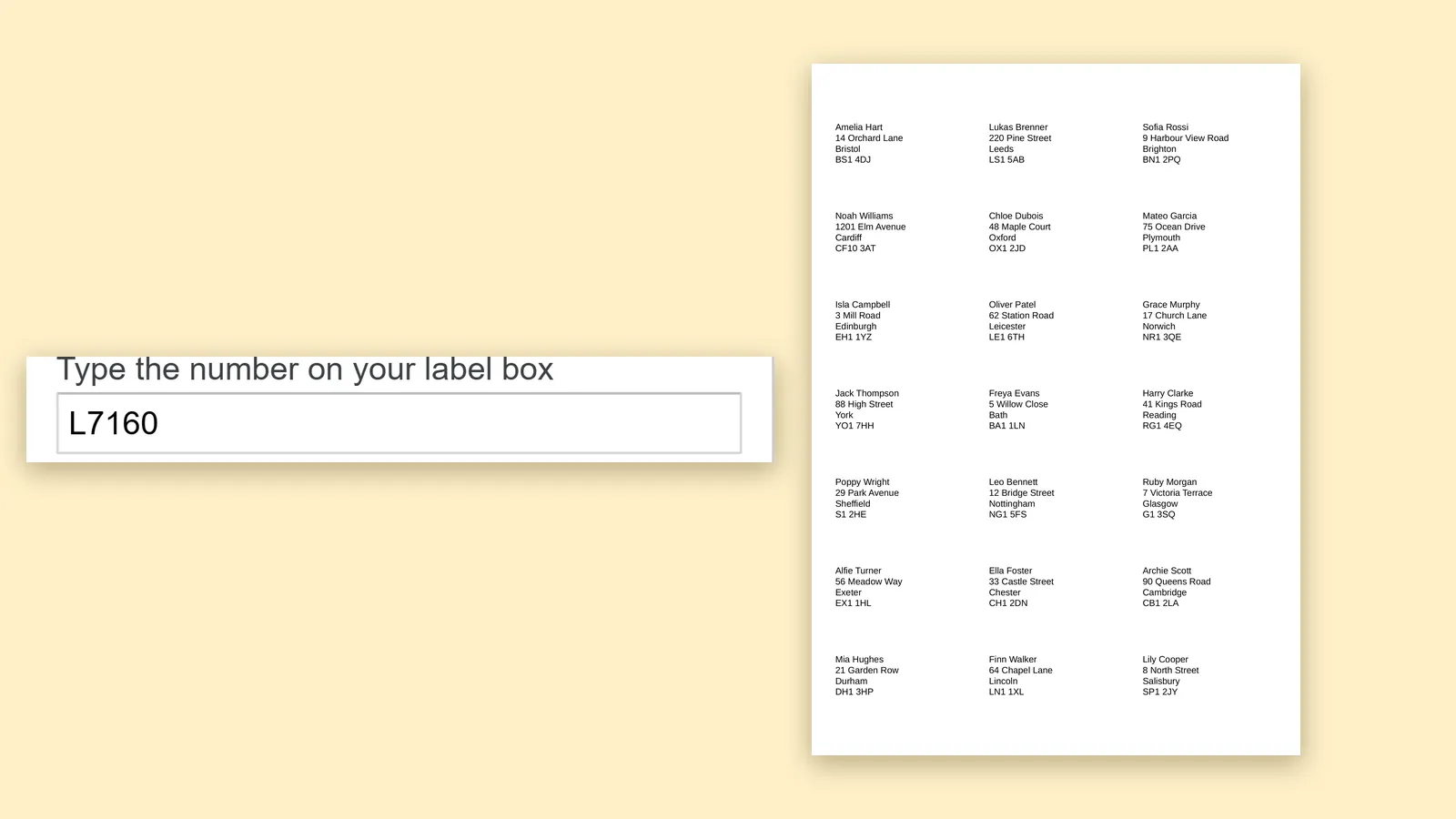
A4 label codes L7160, L7163 and Zweckform: print them from Google Sheets™
Using A4 label sheets in the UK or Europe? Type L7160, L7163 or a Zweckform code, check the preview and print a PDF at the sheet's size from your Google Sheets™ list.
Read the article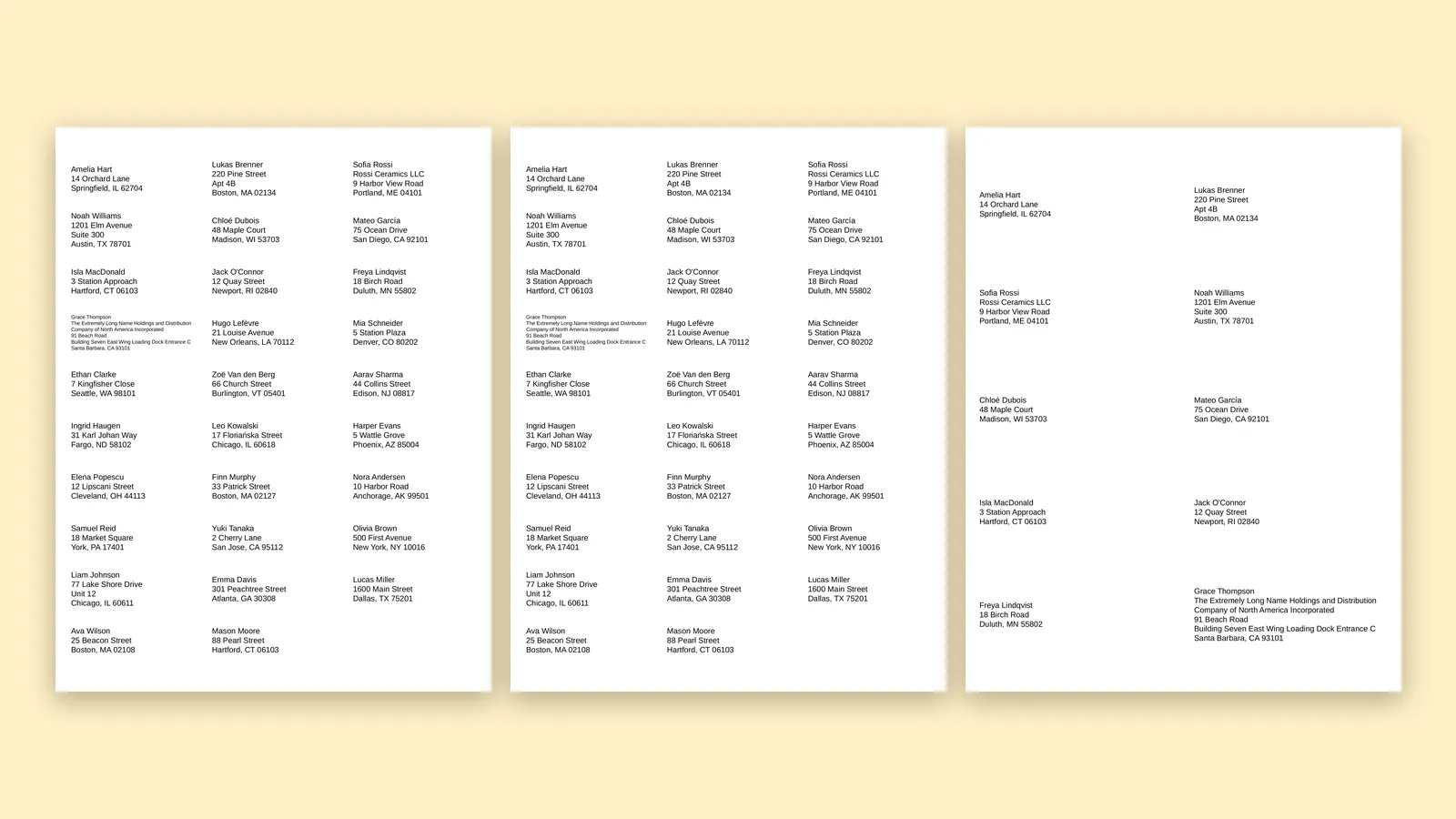 Peelstack2 min read
Avery 5160, 8160, 5163: which code do I type?
Several Avery codes name the same layout. Learn why 5160 and 8160 match, how 5163 differs, and what to type in Google Sheets™ when your box shows another number.
Read the article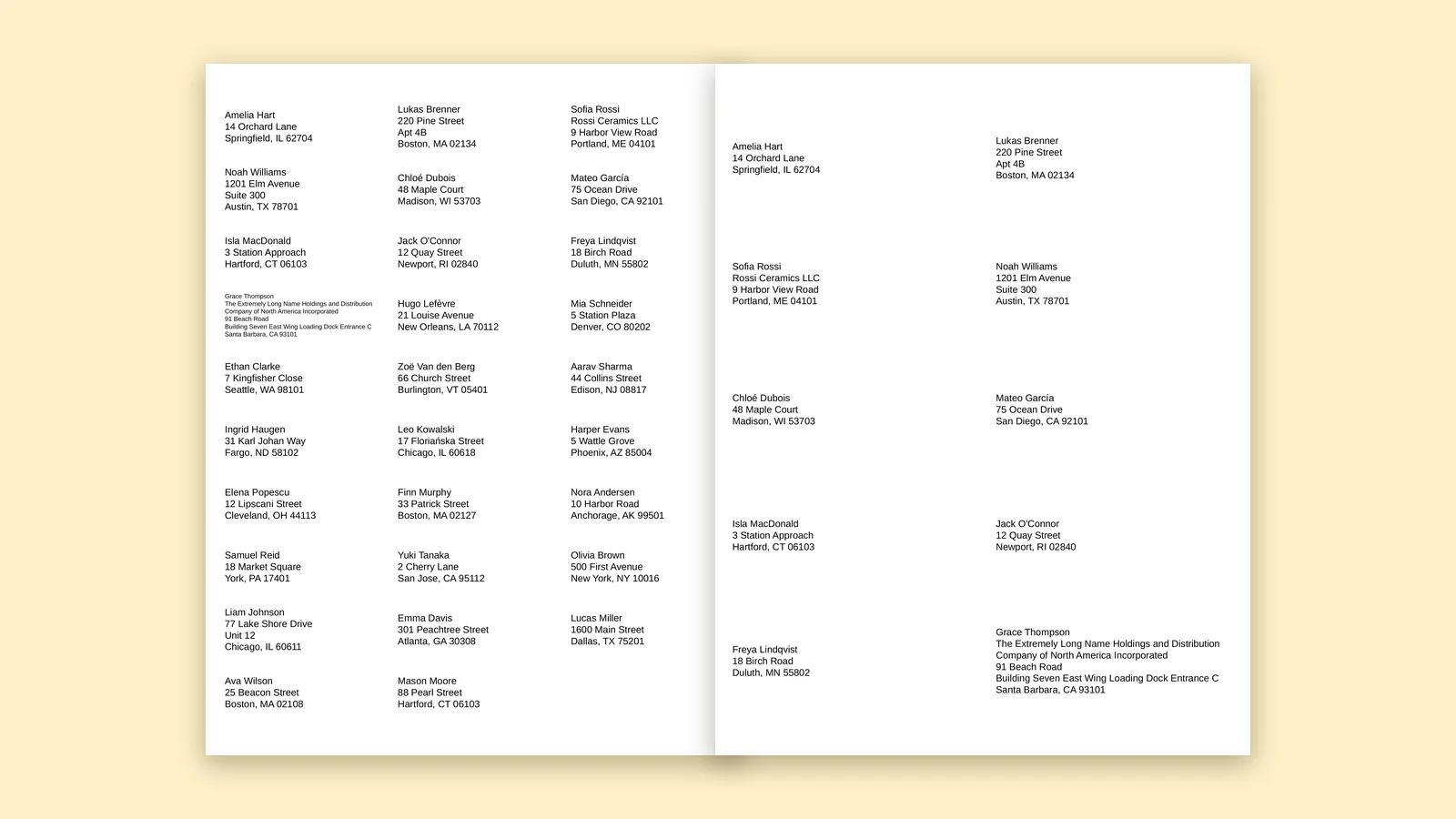 Peelstack3 min read
How many labels are on a sheet, and how many sheets does your list need?
Find the label code on the box, see how many labels fit on the sheet, then work out how many sheets your Google Sheets™ list needs before you buy.
Read the article