

 Peelstack4 min read
Why your ZIP codes lose their leading zero in Google Sheets
Boston's 02134 turns into 2134 in a spreadsheet, and the label prints it wrong. Here is why it happens and how to fix it in Google Sheets before you print.
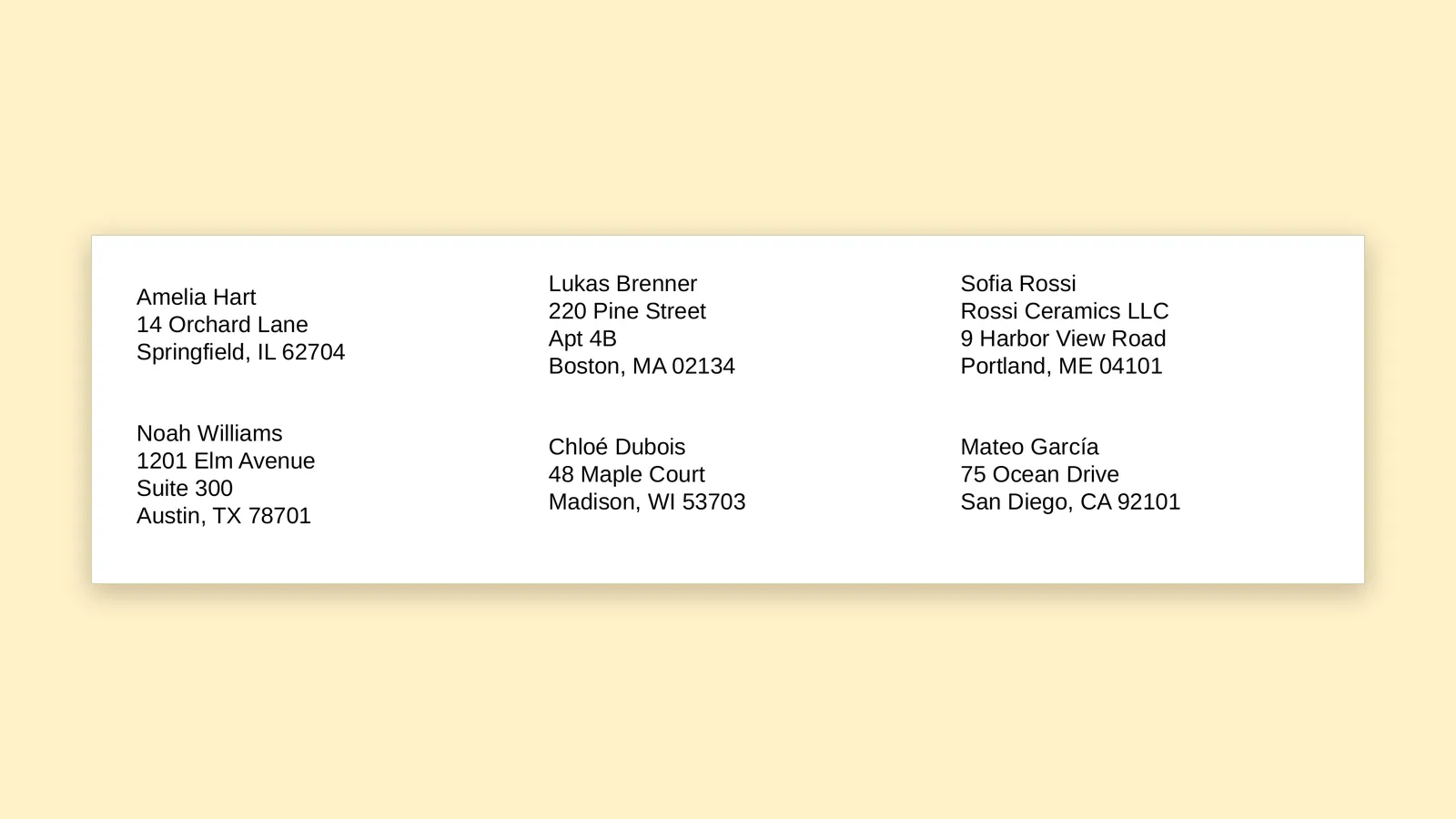
Somewhere in New England, a birthday card is wandering the postal system with a ZIP code that has only four digits. The sender typed 02134 into a spreadsheet, the spreadsheet quietly turned it into 2134, and the label printer dutifully printed what it was given. Nobody did anything wrong, and yet the card is lost.
It is one of the oldest small annoyances in spreadsheets, and the good news is that it has a simple cause and a simple cure. Once you know the trick you will spot it in seconds, and your labels and envelopes will carry the codes you meant.
What is actually going on
A spreadsheet looks at 02134 and sees a number. Numbers do not keep a zero at the front, because as far as arithmetic is concerned 02134 and 2134 are the same value. So the sheet stores 2134. The zero was not saved, and it is not hiding anywhere.
A ZIP code is not really a number at all. Nobody adds two of them together. It is a short piece of text that happens to be made of digits, the same as a phone number or a part number. Spreadsheets cannot know that, so the job of telling them falls to you.
This is not only an American problem. Postal codes in many countries begin with zero, in places such as Germany, France and Italy, and a column of them can lose their leading zeros in just the same way.
How to spot it
Scan the ZIP column and look for codes that are one digit short. In the United States, a four digit code is a good sign something went missing, because ordinary ZIP codes have five digits. Cities in New England and New Jersey, plus Puerto Rico, are the usual victims, since their codes tend to start with zero.
Peelstack Label Maker looks for this for you. If a ZIP code in your list has four digits, it warns you that a leading zero is probably missing and names the rows, so you can fix them before anything is printed.
Fix one: format the column before you type
If you are starting a fresh list, set the ZIP column up first:
- Select the whole ZIP column.
- Choose Format, then Number, then Plain text.
- Now type or paste your codes.
Plain text tells the sheet to leave your characters alone. The zero stays because the sheet no longer thinks it is a number.
Fix two: show the zero on codes that are already damaged
If the zeros are already gone, switching to Plain text will not bring them back, because they were thrown away before you changed the format. Instead, tell the sheet how many digits to show:
- Select the ZIP column.
- Choose Format, then Number, then Custom number format.
- Type 00000 and apply it.
The sheet now displays 2134 as 02134 by padding it to five digits. That is exactly what you want for United States codes. If your list has codes with a plus four ending, which is the code followed by a dash and four more digits, keep those in a plain text column instead, since the dash makes them text anyway.
Importing a file? Watch the import box
Many lists arrive as a CSV file or an Excel workbook. When you import one into Google Sheets, the import dialog has an option to convert text to numbers, dates and formulas. For a list of addresses, switching that off keeps the codes as the file wrote them. If the damage was already done in the original file, the zeros will have to be restored with the custom format above.
What happens at print time
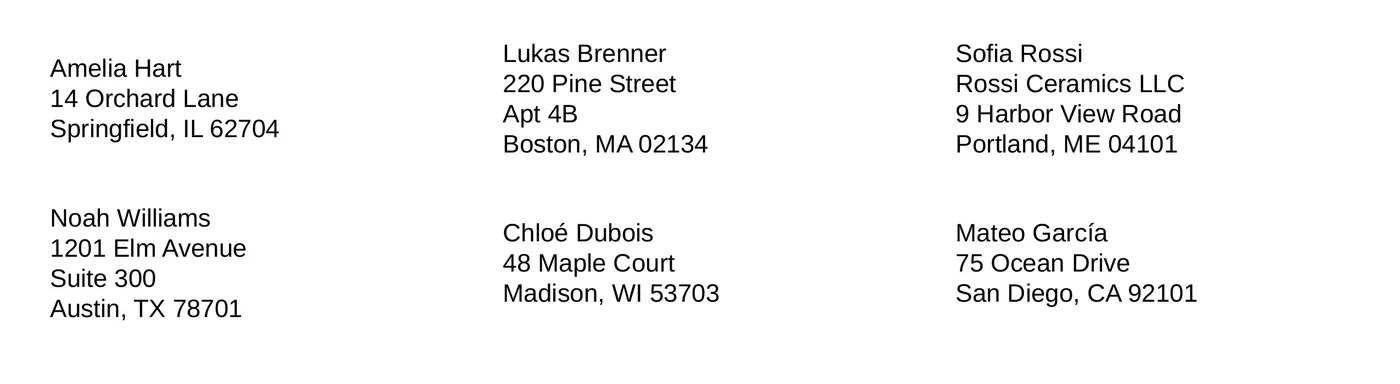
Here is the part that catches people out: a label tool prints what your sheet shows. Peelstack Label Maker prints ZIP codes exactly as your sheet shows them, so a column that displays 02134 prints 02134, and a column that shows 2134 prints 2134. The fix belongs in the sheet, and the preview is where you confirm it.
Before you make the PDF, look at the live preview with your own rows. Check a few of the codes that should start with zero. If Boston, Portland or Hartford shows up as a four digit code, go back to the sheet, apply the format, and watch the preview change.
A quick checklist
- Format the ZIP column as Plain text before pasting new lists.
- For old lists, use the custom format 00000.
- Look for four digit codes. The warning in the preview helps.
- Keep plus four codes in a text column.
- Preview a few zero starting codes before you print.
- Print one test page on plain paper first, then use your label sheet.
The takeaway
Leading zeros are not lost by the printer. They are lost in the spreadsheet, long before a label exists, and a ten second format change prevents it. Set the column once, check the preview, and the next time a birthday card travels to Boston it will carry the whole code.
Peelstack Label Maker is coming soon to the Google Workspace Marketplace. Read more about it at taskivator.com/peelstack.
For Google Sheets. Not affiliated with Google or Avery.
---
Peelstack Label Maker
Keep reading
 Peelstack4 min read
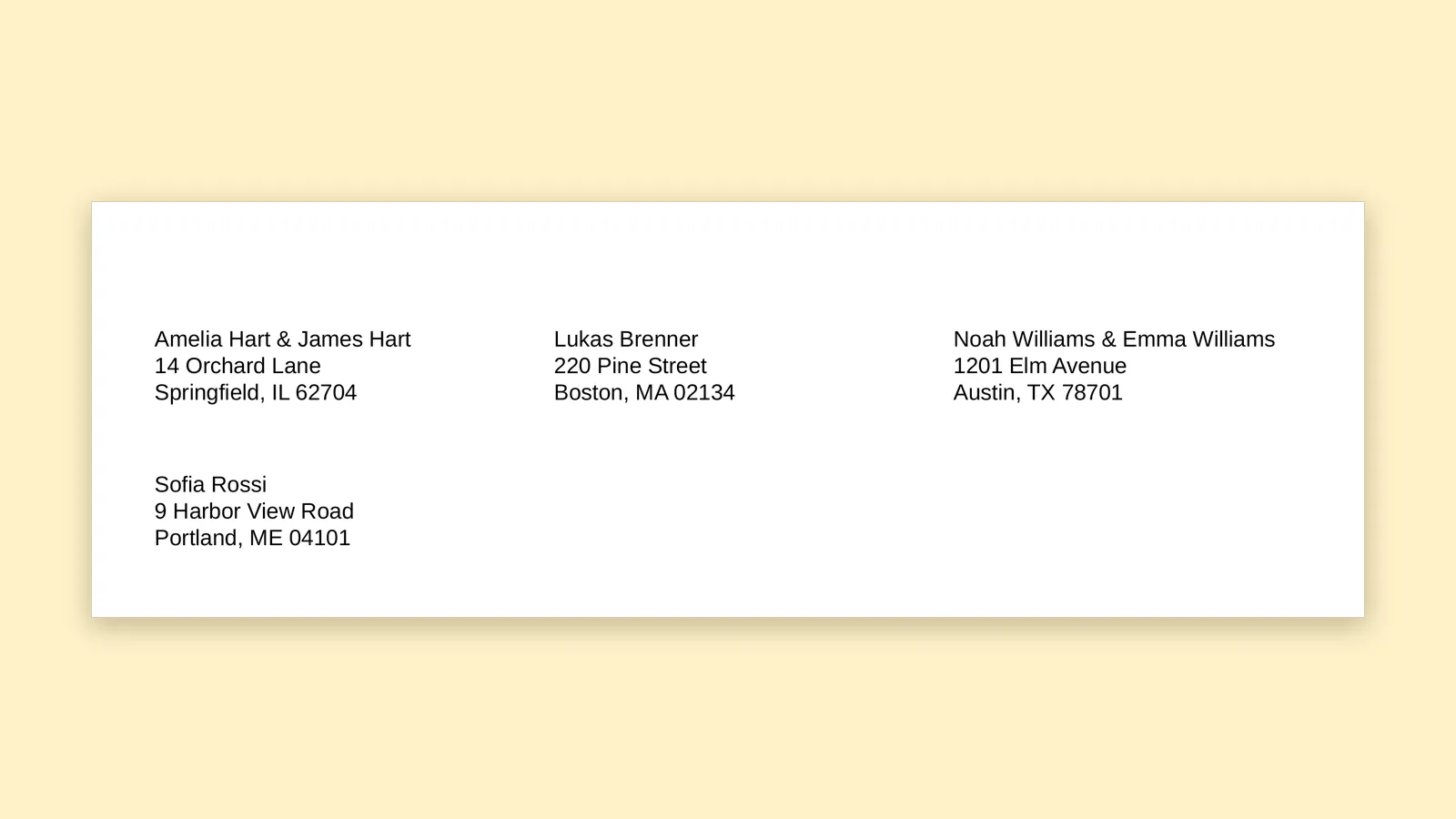
One label per household: a holiday card list you can reuse
Keep your holiday card list in one Google Sheet and print one label per household, with the names joined, then reuse the same list and design next year.
Read the article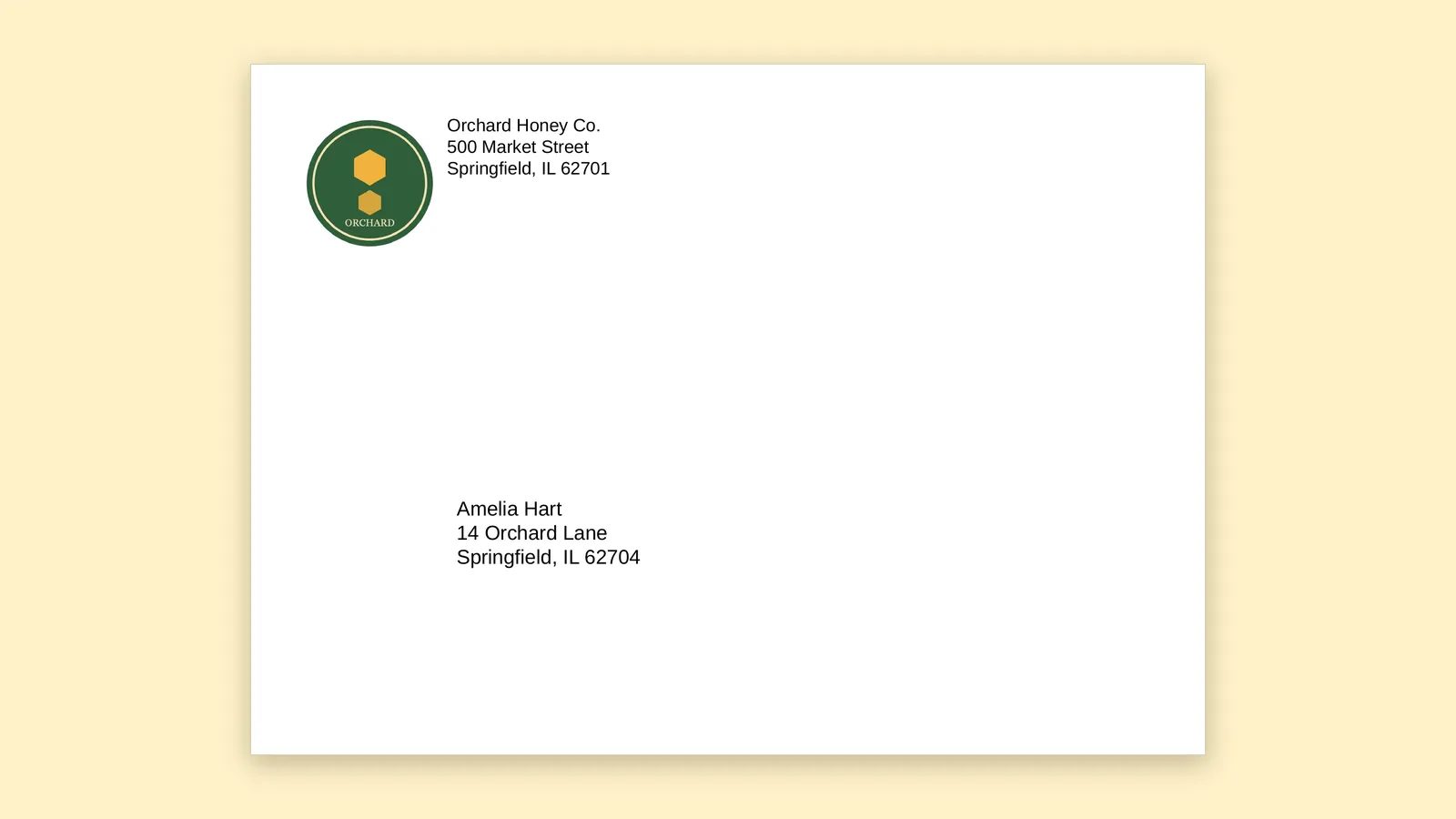 Peelstack5 min read
How to print envelopes straight from a Google Sheet
Turn a list of addresses in Google Sheets into printed envelopes with a return address and logo, and test on plain paper before you use a good envelope.
Read the article Peelstack4 min read
How to print on a partly used sheet of labels
Half a sheet of labels left over? Start printing at the first empty label, test on plain paper and use up the whole sheet from Google Sheets.
Read the article