

 Peelstack4 min read
One label per household: a holiday card list you can reuse
Keep your holiday card list in one Google Sheet and print one label per household, with the names joined, then reuse the same list and design next year.
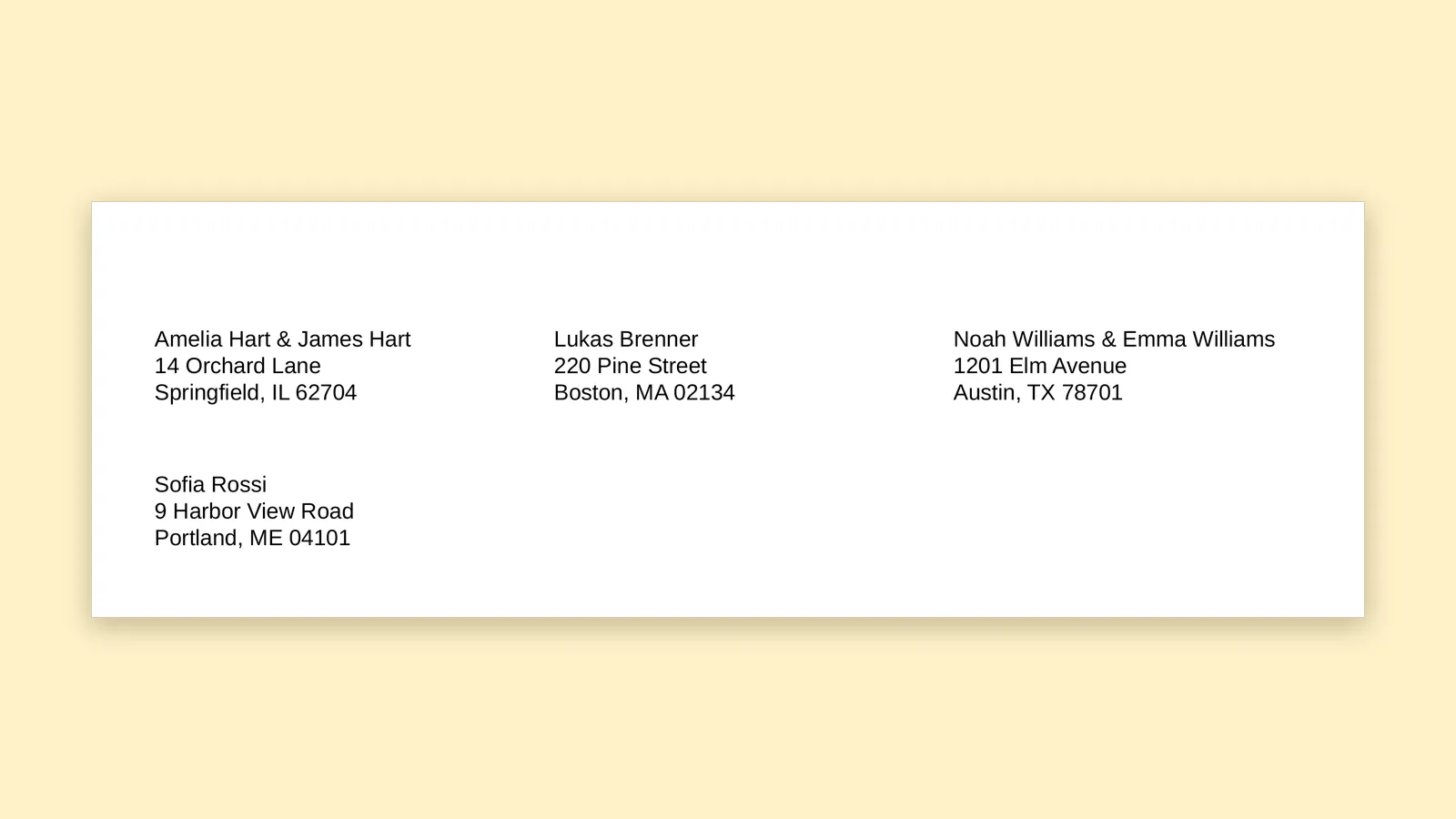
Each year it starts the same way. A pile of cards, a pen that is running low, and a list of addresses that lives somewhere between an old email and the back of last year's envelope. Then comes the question that makes the whole evening longer: do the Williams get one card, or two? They live in the same house.
A card list is a small project with a long life, which makes it a good fit for a Google Sheet. Done well, it takes an hour in the first year and a few minutes in the years after. The trick is to keep one row per person, and let the labels do the grouping at the end.
Keep one row per person
It may seem odd to list two people at the same address on two rows. But that is what makes the list useful for other things as well. One row per person means you can note a birthday, a nickname, who sent you a card last year or who has moved. It also means you do not have to rewrite a combined name when one half of a couple changes.
A simple layout works well:
- Name, one person per row
- Street, with apartment or unit on a second line if needed
- City, State and ZIP
- Notes, for anything you want to remember and not print
Give the first row clear column names. Peelstack Label Maker reads those names and fills in the label lines for you, so the headings are doing real work.
Type the shared address the same way
Rows that have the same address can share a label. For that to work, the address has to match, so type the shared address the same way on each row. If one row says "14 Orchard Lane" and the other says "14 Orchard Ln.", they look like two addresses to a computer. A quick sort by the street column puts neighbours next to each other and makes a mismatch easy to spot.
Turn on one label per household
In Peelstack Label Maker, there is a choice named one label per household. When it is on, rows with the same address share one label, and their names are joined. Amelia Hart and James Hart, both at 14 Orchard Lane, become one label that reads "Amelia Hart & James Hart" above the shared address. The preview tells you how many rows were combined with another row at the same address, so you can see it working.
Everyone else gets their own label as usual. A friend who lives alone does not get tangled up with anybody.
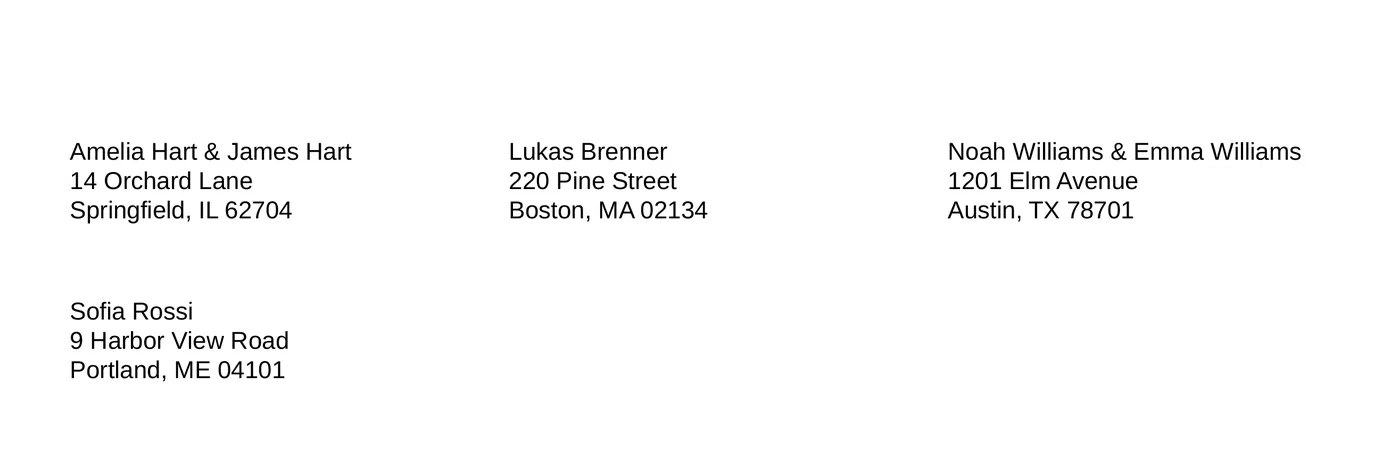
Read the preview with a suspicious eye
Before you print, scroll through the live preview, which uses your own rows. Look for the places where grouping is a surprise:
- A label that should have joined two people but did not, which usually means the addresses differ slightly in the sheet.
- A label that joined two people who should be separate, such as housemates who would like their own cards.
Fix either in the sheet and the preview updates. Check the awkward ones too, such as a long name or a name in another alphabet, and the ZIP codes. If a code should start with zero, such as 02134 for Boston or 04101 for Portland, look at it in the preview. Peelstack Label Maker prints ZIP codes as your sheet shows them, so the fix for a missing zero belongs in the sheet.
Print a few, or print the lot
You do not have to print the whole list at once. You can choose the rows you want, or print the rows your filter shows. Family this week, work colleagues next week, and the neighbours when the last cards arrive. If you are using a partly used label sheet, click the first empty label in the preview and printing starts there.
Do the usual care at the printer. Print one page on plain paper first, at Actual size with fit to page turned off, hold it over a label sheet against a window, and only then use the real labels. If the print lands a little off, enter a small offset after measuring the test page. It is remembered for that paper size.
Save it for next year
This is the part that pays you back. Give your label design a name and save it. Next December you open the sheet, change the few rows that moved house, add the new babies and neighbours, open your saved design and print. The hour in the first year is a few minutes the second.
A few habits that help:
- Keep a year column. Add a Sent column with the year. A filter on it shows who has had a card.
- Keep the notes column off the label. Only the columns you put in the lines are printed.
- Review in November. One pass through the sheet for changes of address saves returned cards.
The takeaway
Keep one row per person, type shared addresses the same way, switch on one label per household and check the preview. The cards that go out are neat, nobody gets two, and next year you start from a finished list instead of a pile of envelopes.
Peelstack Label Maker is coming soon to the Google Workspace Marketplace. Read more at taskivator.com/peelstack.
For Google Sheets. Works with Avery and other label sheets. Not affiliated with Google or Avery.
---
Peelstack Label Maker
Keep reading
 Peelstack5 min read
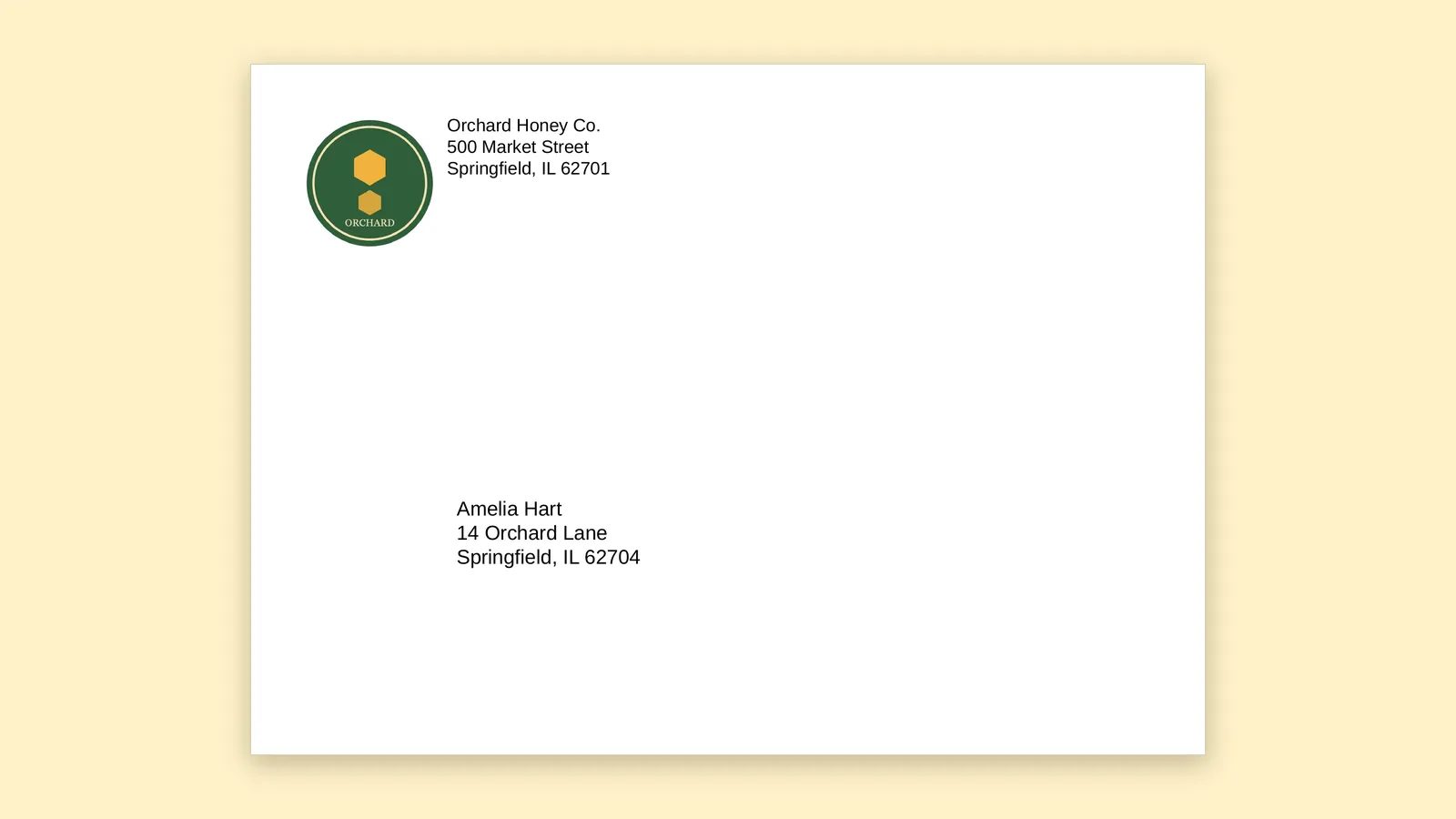
How to print envelopes straight from a Google Sheet
Turn a list of addresses in Google Sheets into printed envelopes with a return address and logo, and test on plain paper before you use a good envelope.
Read the article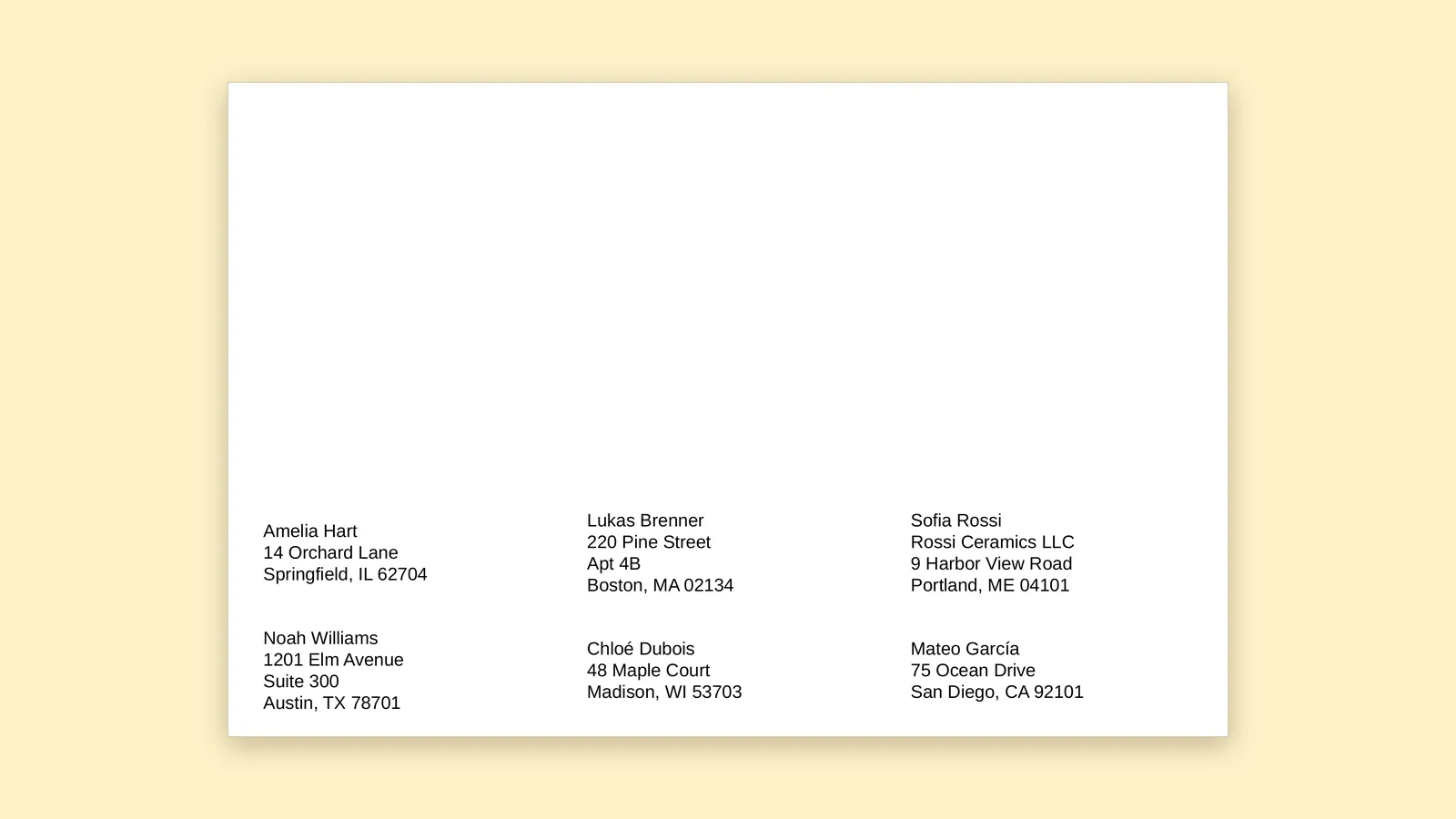 Peelstack4 min read
How to print on a partly used sheet of labels
Half a sheet of labels left over? Start printing at the first empty label, test on plain paper and use up the whole sheet from Google Sheets.
Read the article Peelstack4 min read
QR code or barcode on a product label? How to choose
A plain guide to picking a QR code or a barcode for jars, boxes and stock labels made from a Google Sheet, and how to test that it scans before you print.
Read the article