

 Peelstack3 min read
How many labels are on a sheet, and how many sheets does your list need?
Find the label code on the box, see how many labels fit on the sheet, then work out how many sheets your Google Sheets™ list needs before you buy.
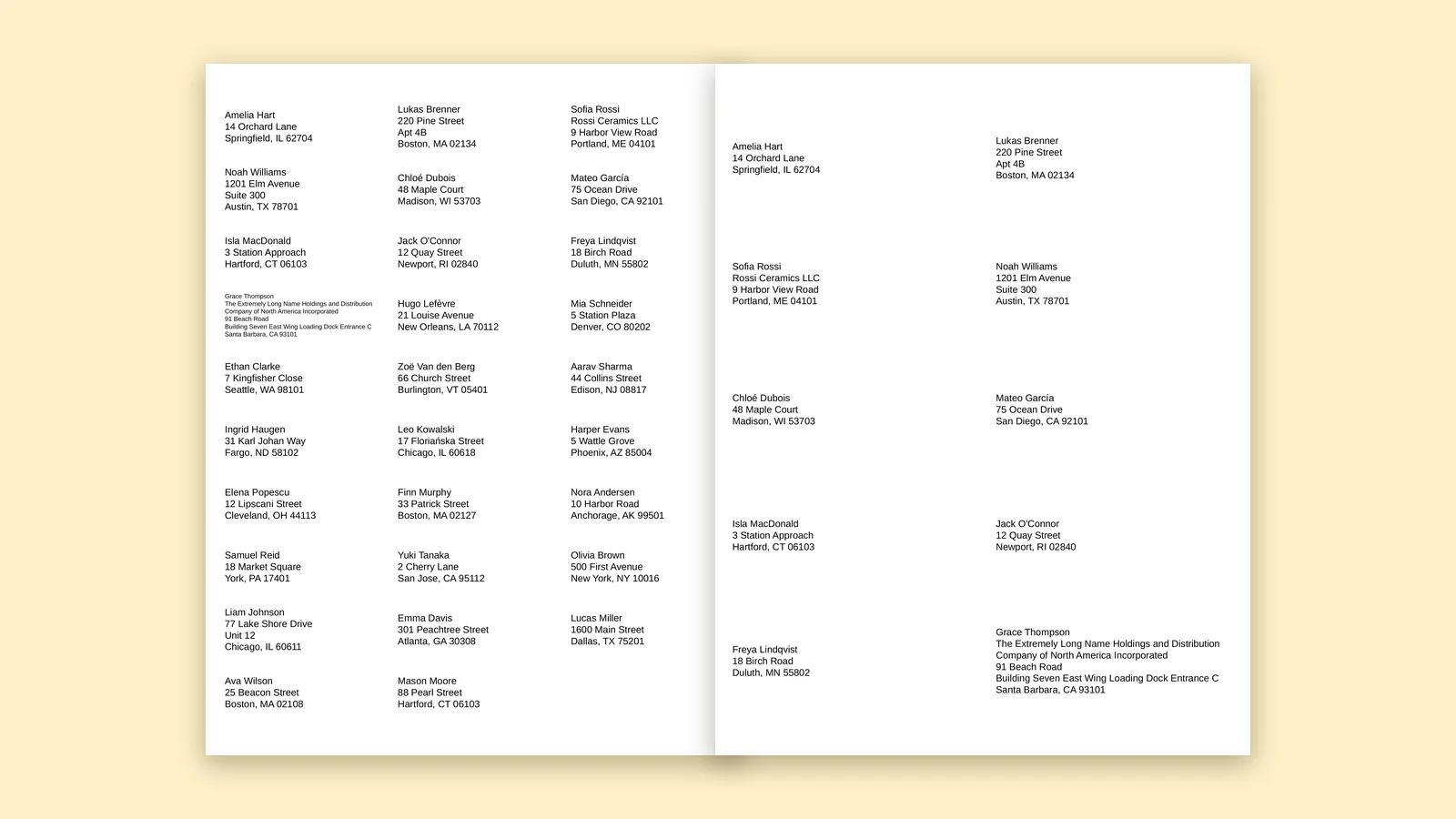
You have a list and a box of labels, and one question before anything else: will it be enough? The answer takes two steps. First, how many labels are on one sheet. Second, how many rows are on your list.
Step 1: read the code
The number of labels per sheet is set by the layout, and the layout is named by the code on the box. A code like 5160 is a small address label laid out in columns and rows. A code like 5163 is a larger shipping label. The same code often has cousins sold under other numbers, such as 8160, and they share the layout.
Count the columns across and the rows down on the sheet, then multiply. You can also type the code into Peelstack Label Maker and read the sheet picture, which states the labels across, the labels down and the label size. For A4 sheets, codes like L7160 and L7163 are handled the same way.
If you only have a sheet and no box, measure one label with a ruler. The label sheet finder on taskivator.com helps you match the size to a code.
Step 2: count your rows
In Google Sheets™ the row count is at the bottom of the list. Remove the header row and any blank rows. If you want two copies of each address, double it. If you use one label per household, your list may be shorter than the number of people.
Step 3: divide and round up
Divide the number of labels you need by the number of labels on a sheet and round up to the next whole sheet. A list that needs a little more than three sheets needs four. Buy one spare for the test print and for mistakes.
Using a partly used sheet
If a sheet is already started, click the first empty label in the preview and printing begins there. That saves the labels you have left from going to waste.
Check before you buy
Open the add-on and type the code before you order. The preview shows how your own rows fall across the sheets, so you can see the last sheet and how full it is. The free test page lets you try the alignment on plain paper first.
The takeaway
The code names the layout, the layout sets the labels per sheet, and your list sets the rest. Read the code, count the rows, divide, round up and add a spare.
Google Sheets™ is a trademark of Google LLC. Avery is a trademark of Avery Products Corporation.
For Google Sheets™. Works with Avery and other label sheets. Not affiliated with Google or Avery.
---
For the website agent
- Meta description: Work out how many labels fit on a sheet and how many sheets your Google Sheets™ list needs, from the code on the box.
- Internal links: labels-per-sheet.html, label-sheet-finder.html, how-many-label-sheets-do-i-need.html
- UTM: ?utm_source=taskivator&utm_medium=article&utm_campaign=labels-per-sheet-article
- Schema (JSON-LD):
``json {"@context":"https://schema.org","@type":"HowTo","name":"Work out how many label sheets your list needs","description":"Find the label code, read the labels per sheet, count your rows, divide and round up.","step":[{"@type":"HowToStep","name":"Read the code on the box"},{"@type":"HowToStep","name":"Count the rows in your Google Sheets™ list"},{"@type":"HowToStep","name":"Divide and round up, then add a spare sheet"}],"publisher":{"@type":"Organization","name":"Taskivator"}} ``
- Picture needed: hero-labels-per-sheet.png (1600x900), real capture of the sheet picture panel.
- Note for review: the article gives no numeric label counts on purpose (no counts rule); the template pages carry the numbers.
Peelstack Label Maker
Keep reading
 Peelstack2 min read
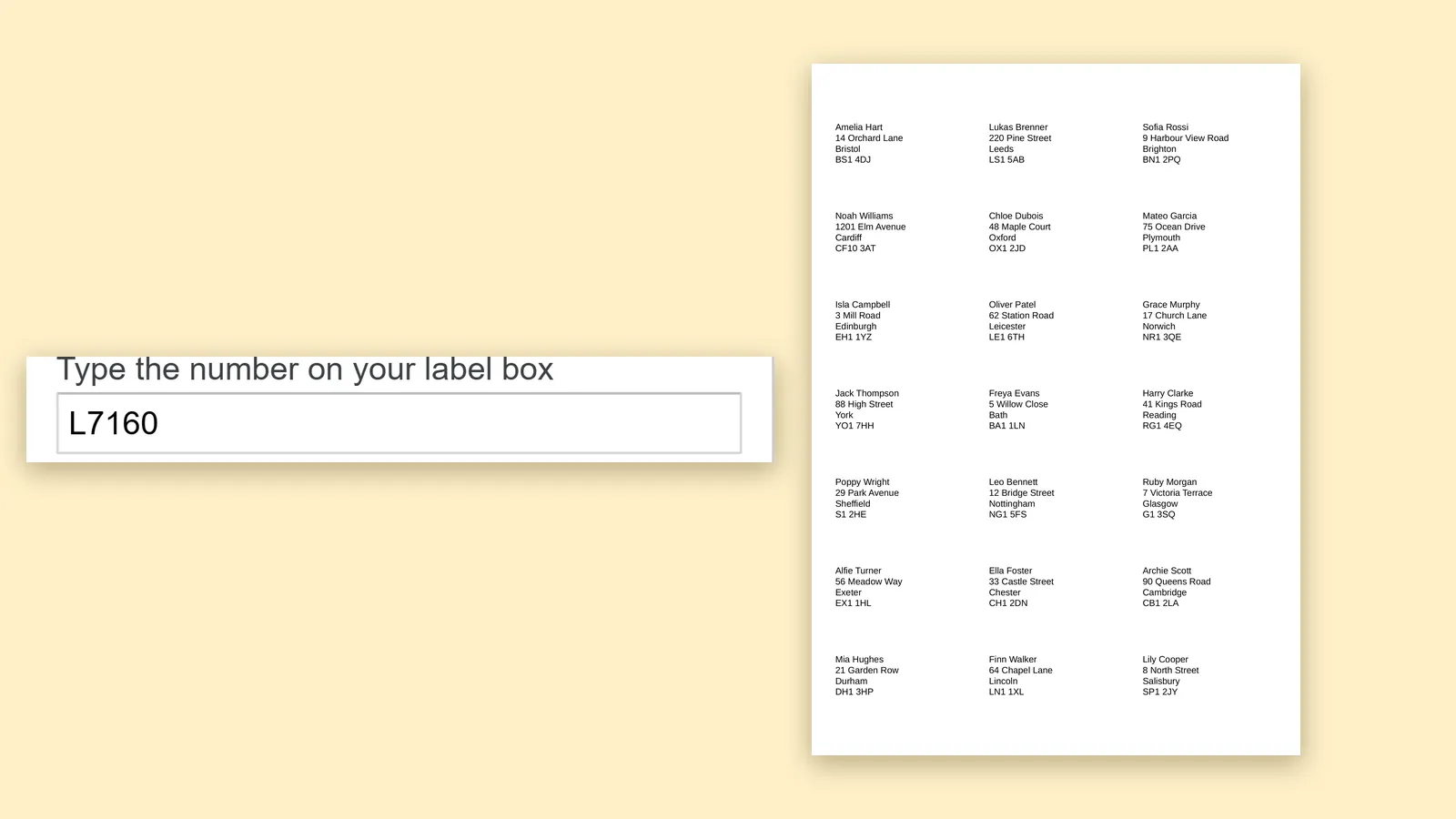
A4 label codes L7160, L7163 and Zweckform: print them from Google Sheets™
Using A4 label sheets in the UK or Europe? Type L7160, L7163 or a Zweckform code, check the preview and print a PDF at the sheet's size from your Google Sheets™ list.
Read the article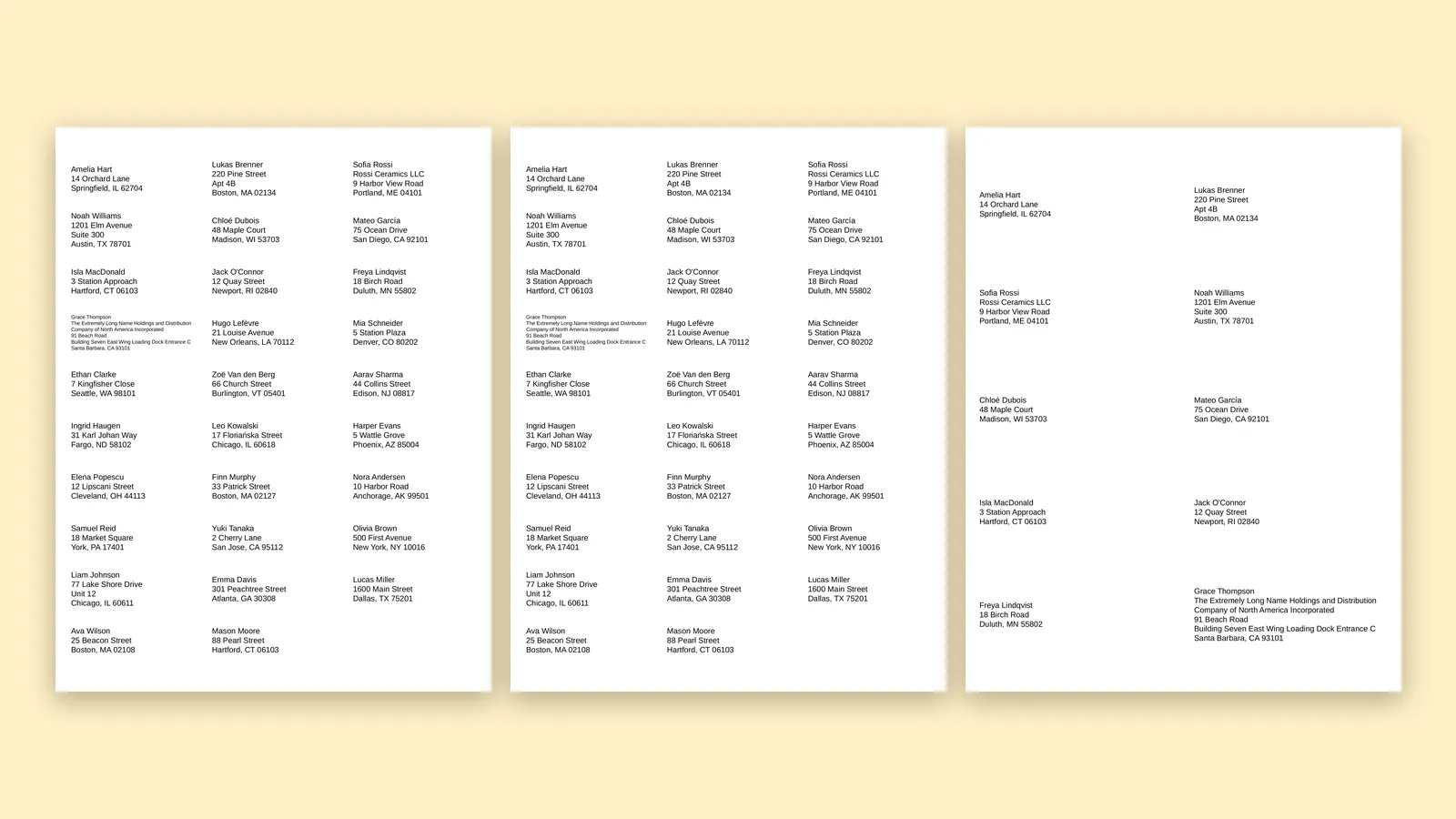 Peelstack2 min read
Avery 5160, 8160, 5163: which code do I type?
Several Avery codes name the same layout. Learn why 5160 and 8160 match, how 5163 differs, and what to type in Google Sheets™ when your box shows another number.
Read the article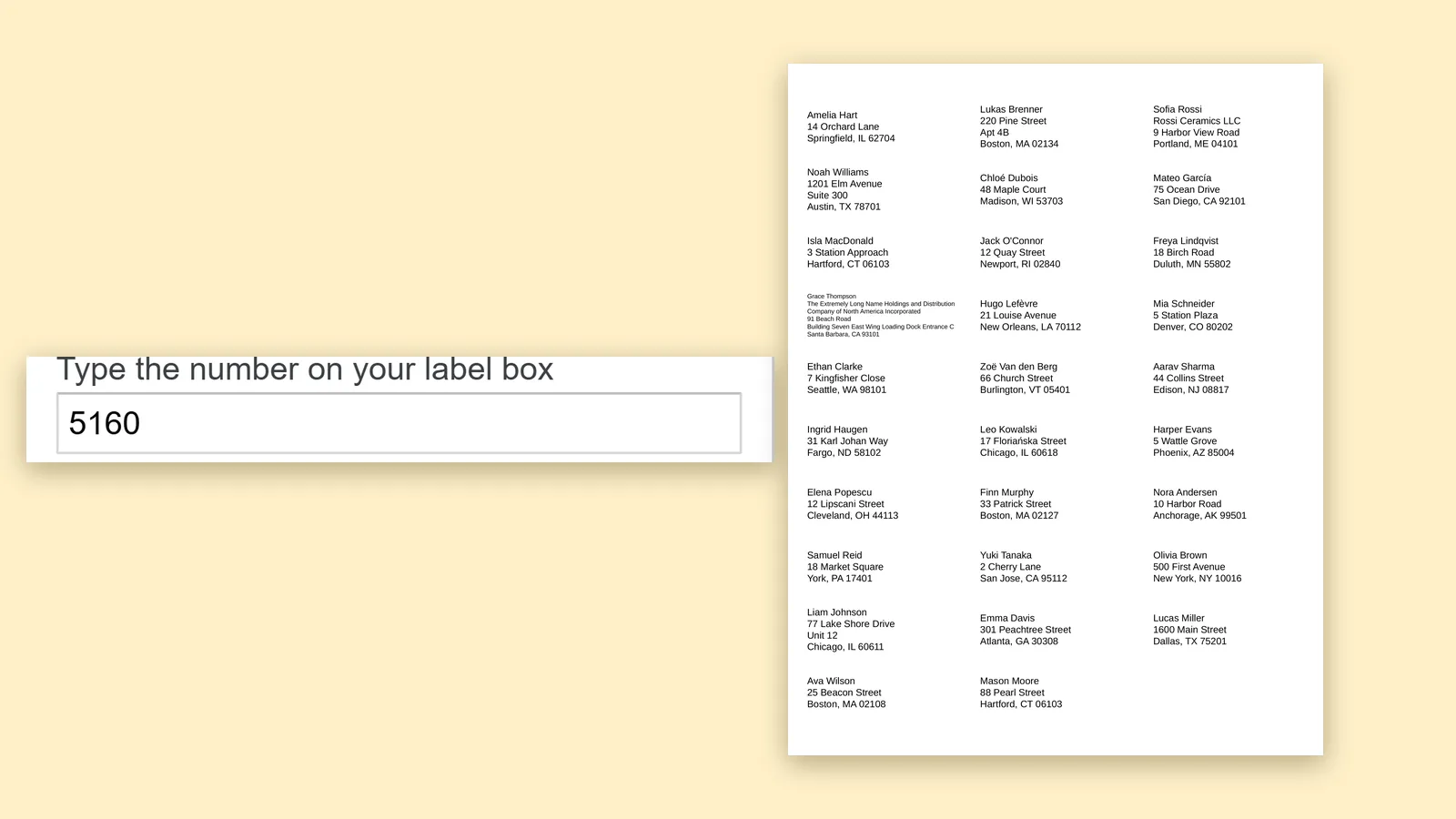 Peelstack3 min read
An Avery label template for Google Sheets™ without downloading one
You do not need a template file to print on Avery sheets from Google Sheets™. Type the code from the box, check the preview and print a PDF at the sheet's size.
Read the article